Brand your club
Give the app, the admin, your website and these docs your club's colours, logo, fonts and corner style. Owners and admins can do this, and coaches with the Branding permission. A member (not a coach) with the Branding permission does it in the app instead: More → Club branding.
- In the admin, open Branding.
- Under Logo, click Upload logo and choose the image: JPG, PNG or WebP, up to 5 MB. Square images work best. SVG files and links to images on other websites don't work; save the logo as a PNG first. Replace logo swaps it, Remove logo takes it off. (In the app, More → Club branding → Change logo uploads one from your phone.)
- Under Brand colours, set the Primary colour (buttons, links, the header band), the Secondary colour and the Accent colour (highlights and live badges). Type a hex value like
#1D5C3For use the colour picker. - Under Corner style, choose Square, Rounded or Extra round.
- Under Typography, choose a Heading font and a Body font.
- Check the Preview on the right, in Light and Dark.
- Click Publish.
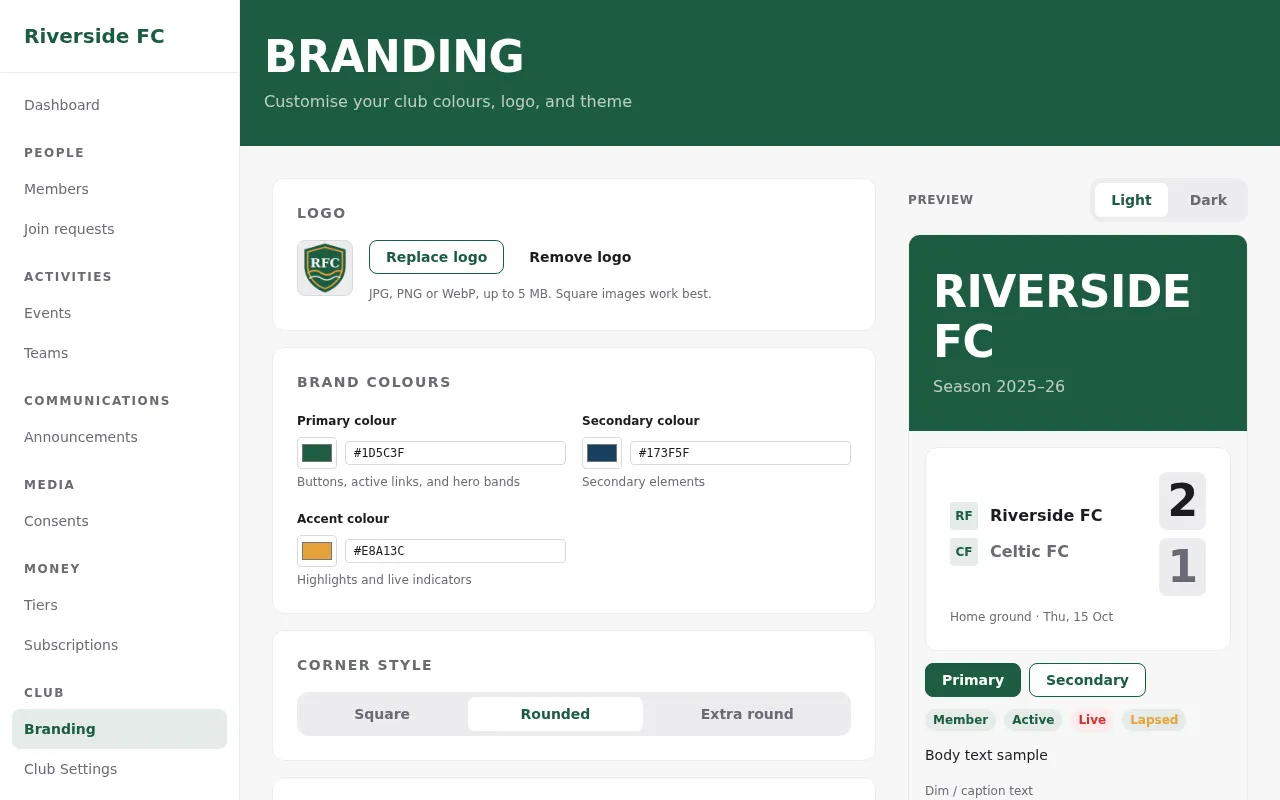
All devices change to the new look within seconds. Until you publish, nothing changes for members; Discard changes throws your edits away.
Fine-tune single colours
Open Advanced overrides to change a single colour, such as the screen background or the text on the header band, separately for light and dark. Low contrast warns you when text would be hard to read. Reset goes back to the colour Clubkit worked out from your brand colours.
Give someone the branding job
Open Members, click the person and switch on Branding under Permissions (Assign roles).