Manage your child's profile
Keep your child's details, photo and guardians up to date. Guardians who manage a child can do this.
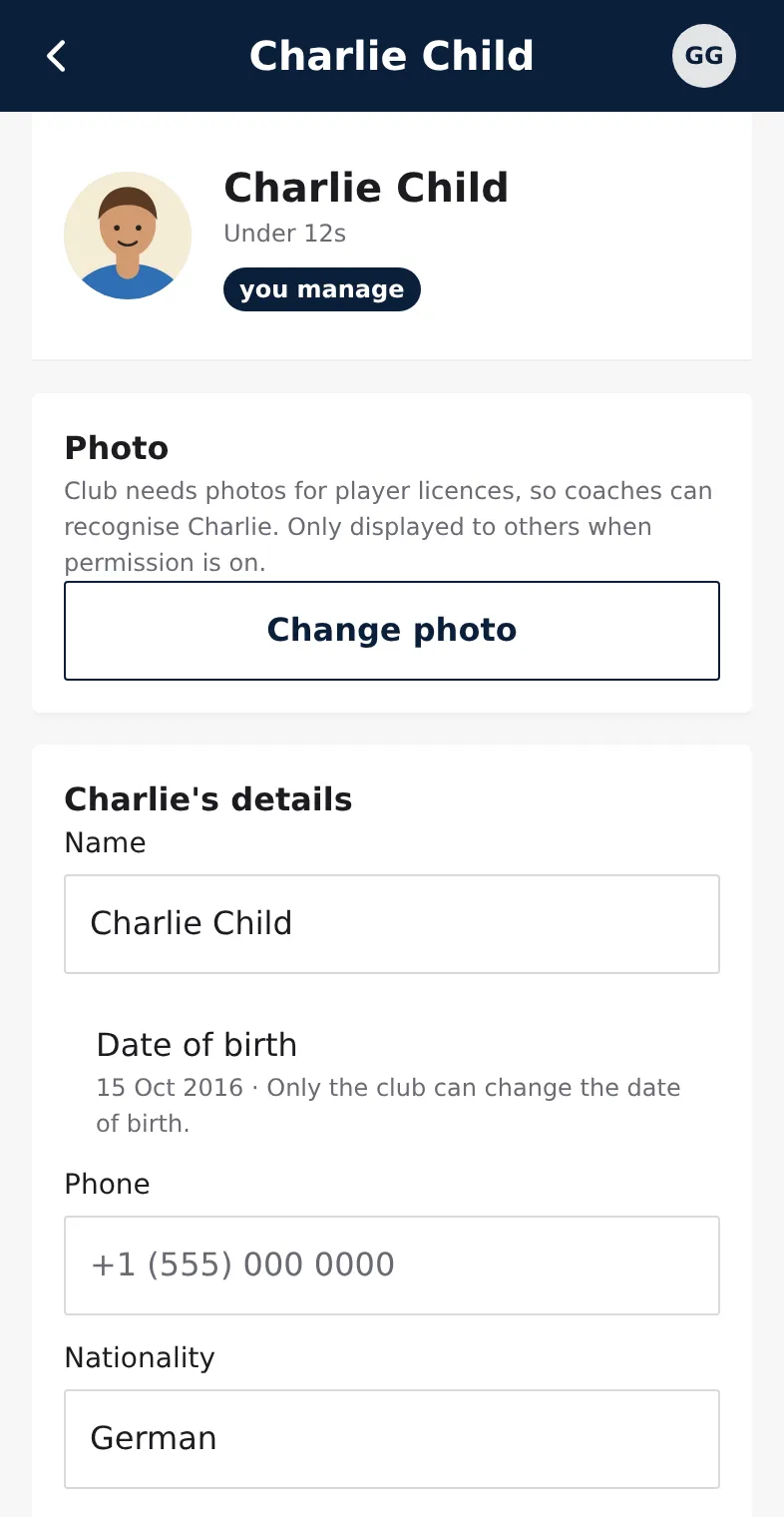
- Open More → Family and tap your child.
- Under Photo, tap Add photo or Change photo. Clubs need a photo for the player licence and so coaches can recognise your child. Others only see it if you allow Clubkit App under photos.
- Under the child's details, change name, phone, nationality, positions, emergency contact and medical notes.
- Set the Date of birth if it's empty. You can set it once; after that only the club can change it.
- Tap Save.
Further down the same screen:
- Teams shows the child's squads.
- Photos & publication opens the photo choices (Give consent for your child).
- Away dates for holidays or injuries.
- Guardians lists everyone linked to the child.
- Own account appears from the club's handover age (Hand over the account).
Invite the other parent
- Under Guardians, tap Invite the other parent.
- Enter their email, and optionally their name and relationship (Parent, Grandparent, Carer, Other).
- Tap Send invitation.
They get an email and, once they accept, can do everything you can. The club sees the invitation on the child's record.
Stop being a guardian, or leave the club
- Stop being a guardian removes only you. The club or another guardian can invite you again.
- Leave the club ends your child's membership: their squad places end and you stop seeing them in the app. Past matches and records stay with the club. Your child's coaches and any other guardians are told.