Run a live game
Keep the score during a match so members, fans and the club website follow it live. The match's coaches, owners, admins and the designated scorer can do this.
Start the game
- Open the match event in Schedule. Under Game, tap Create game if there's none yet, then View match.
- Tap Open Scoring Console.
Record the match
- Tap Period Start at kick-off and Start Clock.
- Tap Goal, Yellow or Red under the team it's for.
- Tap Period End at half time, Period Start for the second half.
- Tap Full Time at the end.
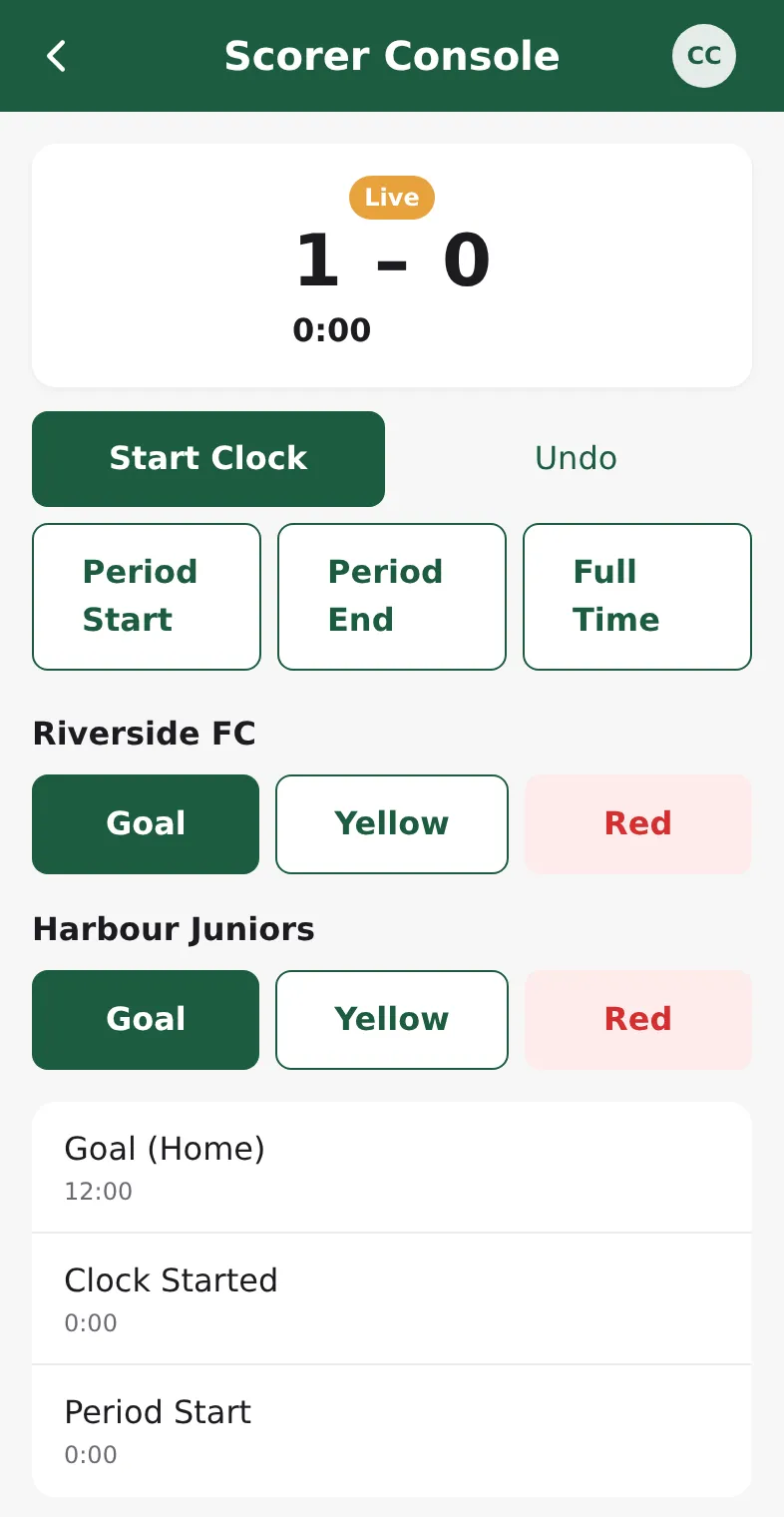
The score is worked out from what you record, so the timeline and the score always agree. Tap Undo to take back the last entry you recorded.
The console works with a weak connection. Entries are sent as soon as the phone is back online.
From the admin
- Open Events, click the match and then Open live scoring (or Create game first).
- Use Kick off, Half time, Second half and Full time, and Start clock / Stop clock.
- Click Goal, Own goal, Yellow or Red card for each team.
- To correct a mistake, delete the entry in the Timeline. The score is recalculated.
Hand the scoring to someone else
In the admin's live scoring page, choose a person under Designated scorer and click Assign. They can then score this game in the app, even without a staff role.
Coaches and scorers can delete the entries they recorded themselves; owners and admins can delete any entry.