Create teams and assign coaches
Set up your teams, decide who coaches them and which teams appear on your website. Owners and admins can do this.
Create a team
- In the admin, open Teams and click New team.
- Enter the Team name, choose the Age group (for example Under 12 or Senior Men's) and, if you like, a Team colour.
- Click Create.
The team's colour marks its events in the app. Without one, the club colour is used.
Assign coaches
- Open the team.
- Under Coaches, choose a person in Assign a coach and click Assign coach.
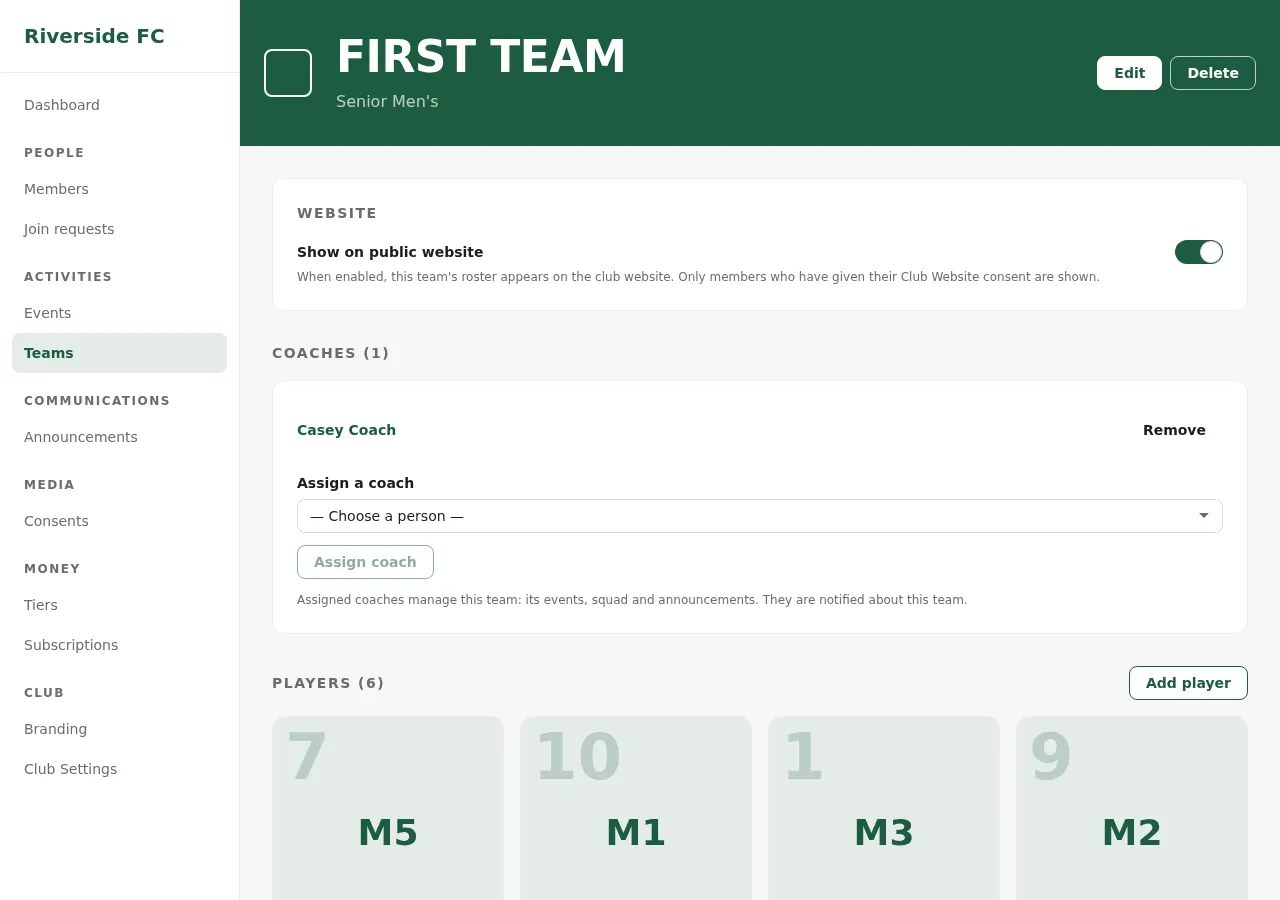
Assigned coaches manage this team: its events, squad and announcements, and they are notified about it. Coaches of other teams can't change it.
You can also do it from the person: Members → the person → Teams coached, and tick the teams.
Coach categories
On a coach's member page, Coach categories decide in which age groups this coach may create new teams themselves (in the app: Team → Create squad). They don't give access to existing teams; that's Teams coached.
Players
Under Players, click Add player and choose the member. Coaches usually manage the squad from the app (Manage your squad).
Show the team on your website
Switch on Show on public website on the team page. Its fixtures, results and squad then appear on your public website (Show fixtures, results and squads). Leave it off for youth teams you don't want to show publicly.
Edit changes the name, age group and colour; Delete removes the team.