Invite members
Add people to your club and send them an invitation. Owners and admins can do this.
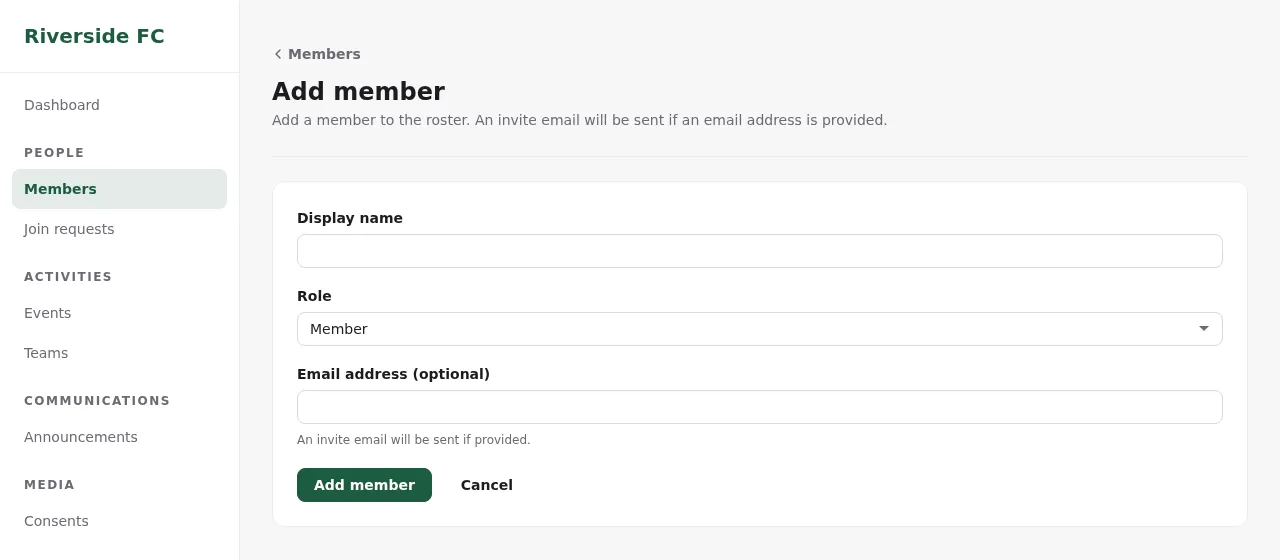
- In the admin, open Members and click Add member.
- Enter the Display name.
- Choose the Role: Member, Coach or Admin.
- Enter their Email address. Without one, the person is added to the roster without an invitation.
- Click Add member.
The person gets an email "You're invited to join … on Clubkit". When they sign up with that address, they're in (Accept an invitation). Until then the members list shows them as Invited.
Roster-only members
People without an email (for example young children) stay on the roster. You can add them to teams, and their guardians can answer for them once linked (Accept a guardian invitation). To invite them later, click Send invite next to them in the members list.
Resend an invitation
In Members, click Resend invite next to the person. If you add someone whose email is already on the roster, the admin offers to resend their invitation instead of creating a duplicate.
Many people at once
- Import members from a spreadsheet
- Let people ask to join with a link or QR code: Accept join requests