Accept join requests
Share a join link or QR code so people can ask to join, then accept or decline each request. Owners and admins can do this, and members with the Join requests task.
Create the join link
- In the admin, open Join requests.
- Under Join link, click Create join link.
- Click Copy link to paste it into an email or chat, or Download QR code for a flyer.
Anyone with the link or QR code can ask to join; you decide who gets in. Make a new link replaces it (the old link and QR code stop working at once). Turn off stops all new requests.
On a phone, staff find the same link under More → Join link, with Share link and Share QR code, for training or a parents' evening.
Decide on a request
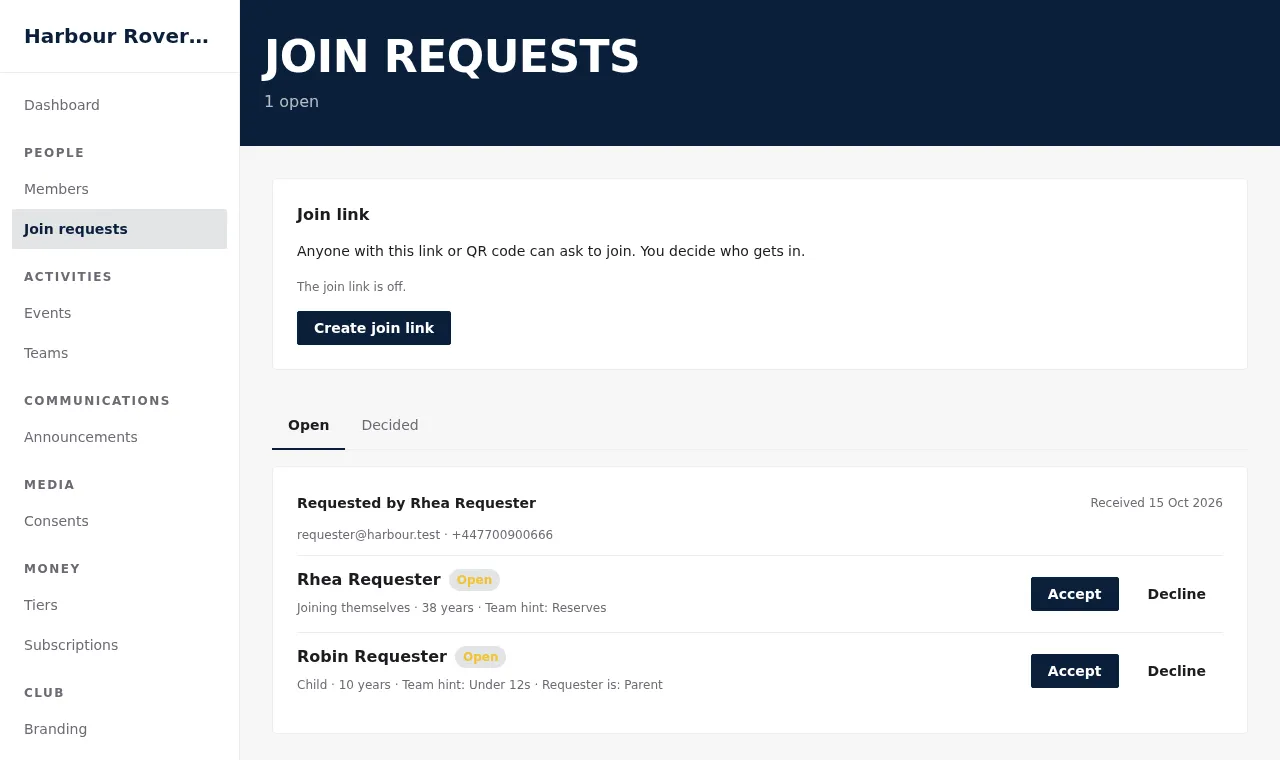
Each request shows who asked, each person joining (adult or child, age, the team hint) and how the requester is related to a child.
- Click Accept next to a person.
- Choose a Team (optional) and a Tier (optional).
- If Clubkit finds a Possible match (same name and date of birth already on the roster, for example after an import), choose Link to … instead of creating a new member. Otherwise keep Create a new member.
- Click Accept. The person is now a member. For a child, the requester becomes the child's guardian.
To say no, click Decline, add a reason if you like (it's sent in the email) and click Decline again.
The requester gets an email either way. Decided requests move to the Decided tab. The Dashboard's To do shows how many requests are waiting.