Check the schedule and results
See what's coming up for you and how past matches ended. Every member can do this.
The schedule
- Open the Schedule tab. Events are grouped by week: This week, Next week, then "Week of …".
- To show only one kind of event, tap Show and choose Matches, Training or Social.
- To look back, switch from Upcoming to Past.
- Tap an event for the details.
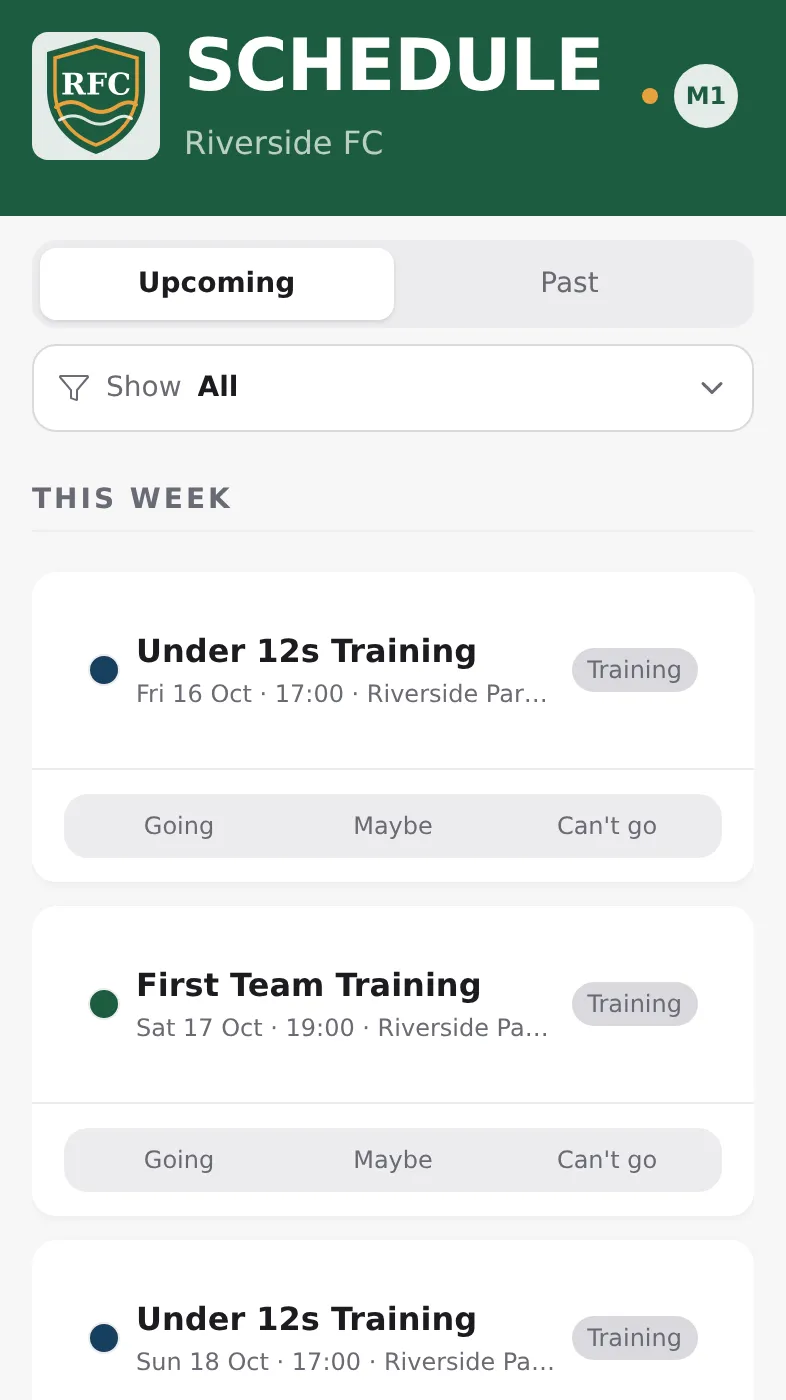
The schedule shows the events of your squads and the club-wide events. A coloured dot shows the squad; an event for several squads has a dot for each and lists them all. "Cancelled" marks an event that won't take place.
The app keeps the last 12 months on your phone ("Showing the last 12 months"). Club admins and coaches still see older events in the admin.
Matches and results
- Open the Matches tab.
- Live now shows games being played, then Upcoming and Results. The filter at the top switches between All, Upcoming and Results.
- Tap a match to see the score and the timeline of goals and cards.