Create an event or training series
Put a training session, match or social event in the schedule, once or every week, for one squad or several. Coaches can do this for the squads they coach; owners and admins for any squad or the whole club.
In the app
- Open Schedule and tap New Event.
- Choose the event type: Match, Training or Social.
- Under Squad, pick the squad. For training and social events you can tap several squads, for example the first team and the reserves training together; a match is always for one squad. Owners and admins can also choose Whole club.
- Fill in Title, Location, Starts at and, if you like, Ends at. For a match, add the Opponent and Home / Away.
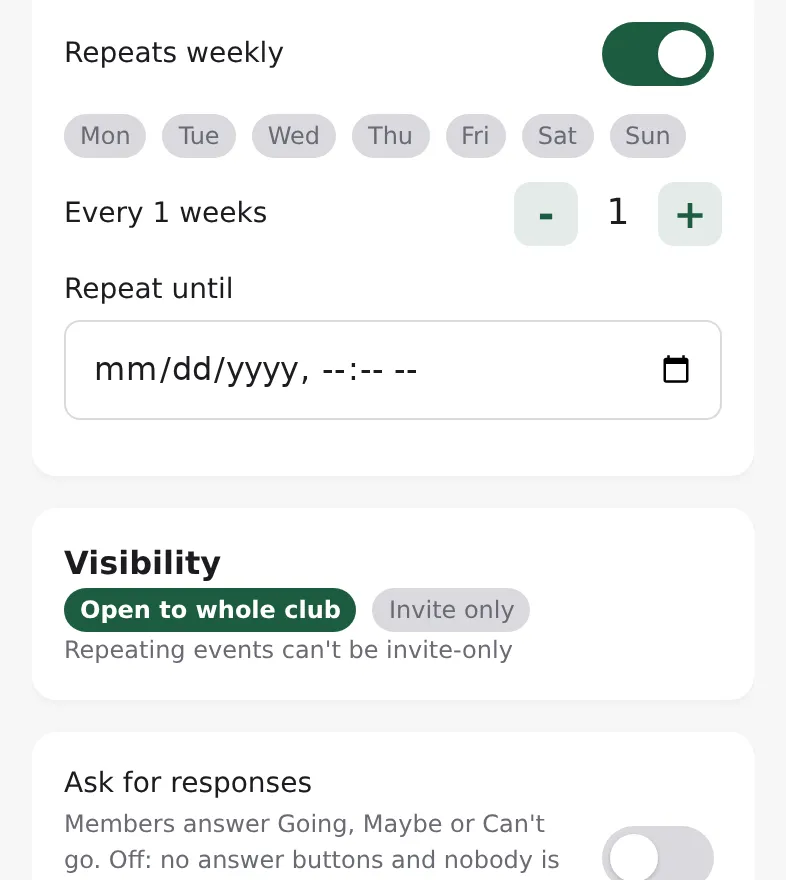
- To repeat it, switch on Repeats weekly, tap the weekdays, set Every … weeks and Repeat until. The form shows how many sessions it creates (at most 104).
- Under Visibility, keep Open to whole club or choose Invite only and pick squads and individual members.
- Leave Ask for responses on if members should answer Going, Maybe or Can't go. Switch it off for events like a club barbecue.
- Tap Create event.
In the admin
- Open Events and click New event.
- Fill in Title and Type.
- Under Teams, tick every team the event is for. A match (Fixture) takes exactly one team. With no team ticked, the whole club sees the event.
- Fill in Start, End and Location. Capacity and RSVP deadline are optional.
- Switch Ask for responses on or off.
- For a series, tick Recurring event, choose Every N week(s), the Days of week and an End date.
- Click Create event.
Events for several squads
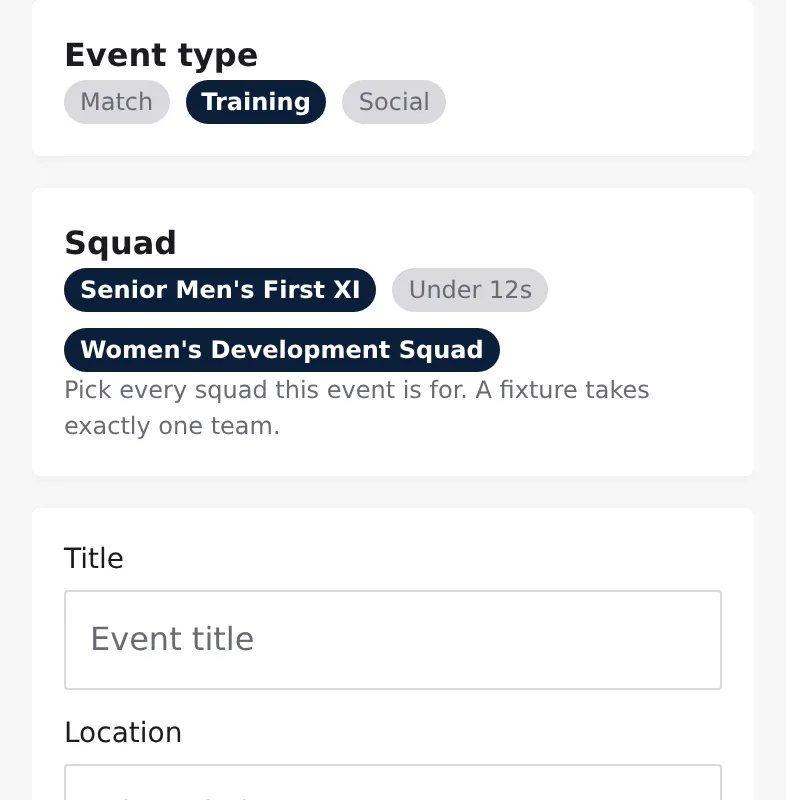
- Everyone in every chosen squad sees the event, can answer and gets reminders and changes. The event shows all its squads, and the attendance list has the players of every squad.
- Coaches can add only the squads they coach. Owners and admins can combine any squads.
- Any coach of one of the event's squads can edit, cancel or delete it, as can owners and admins. A coach can't remove the last squad they coach to turn the event into one for the whole club; only owners and admins can do that. To change the squads later, open the event and tap Edit in the app, or change Teams on the event's page in the admin.
Good to know
- A series creates one event per session. Each one can be edited, cancelled or deleted on its own (open the event, then Edit).
- Repeating events can't be invite only.
- Creating an event sends no notification; people invited to an invite-only event get an invitation, and members get reminders before events, following their notification settings.
- Changing the time or place of an event in the next two weeks, or cancelling it, notifies the squad (or the invitees). Several edits within a minute go out as one message.